hi Basilis, back. Sorry, was away for a few days. Ok sounds good. Let me process your info and proceed with payment.
Responding to you right now so you know this is still on.
btw… can’t you have your Helpdesk system set up so that you when you guys reply an email is sent out, so I know you’ve responded?
Hi there,
Thanks for that. I have another question about this. I changed the font to Montserrat under appearance settings but it doesn’t seem to be changing the font. What can I do?
Please send us wp-admin access to your site as a private message for us to further assist your situation.
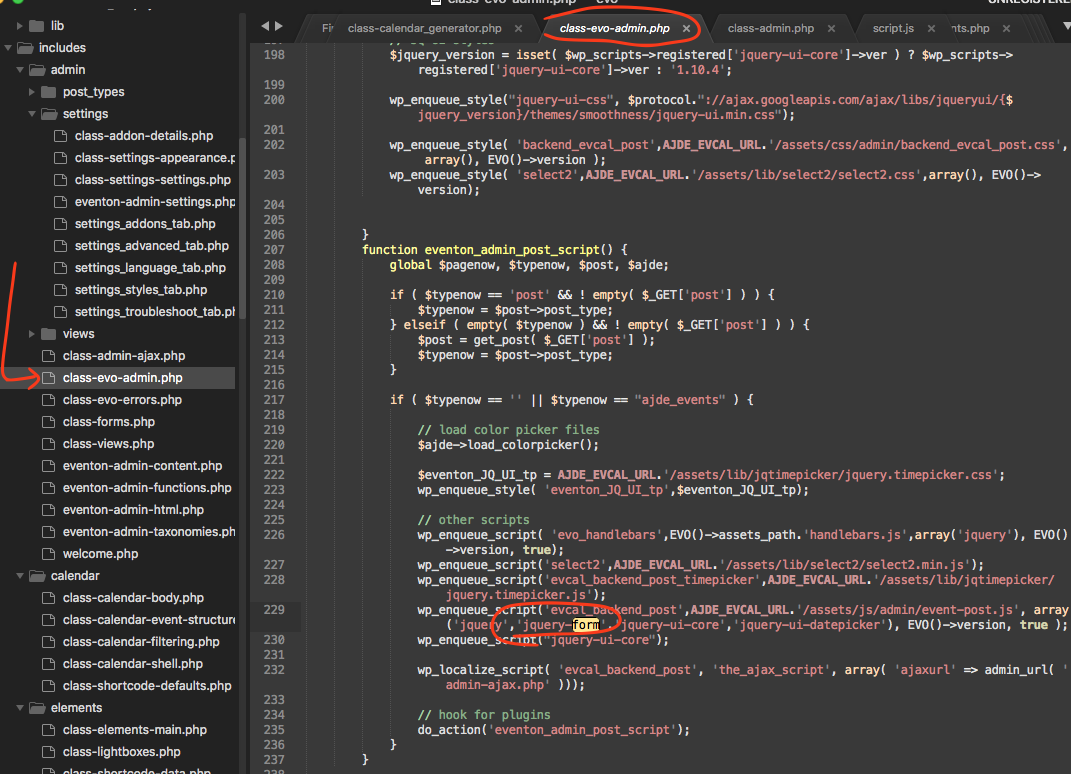
Please go to eventon-tickets/includes/class-integration-general.php:21 and add font-size: 20px; after padding:20px;
Hello,
EventON and Polylang aren’t compatible, like with WPML https://docs.myeventon.com/documentations/wpml-eventon-front-end/, for example. However, you can create a separate page for each translation and then follow https://docs.myeventon.com/documentations/setup-language-corresponding-events/.
Please check and let me know.
Hello,
Yes, of course. Please note that you need a separate license for each subdomain.
Hello,
Left blue border cannot be changed from EventON > Appearance. Please go to Edit Event > Event Color.
This part ?post_type=avada_portfolio&p=11324 is referring to the Avada theme.
Could you please try the instructions mentioned in this documentation to make sure your issue is indeed coming from eventon.
Hello,
Could you please try applying this patch fix?
https://helpdesk.ashanjay.com/wp-content/uploads/2020/07/Screen-Shot-2020-07-28-at-9.34.03-AM.png
Required Information Missing to Enable Virtual Events
This message should be gone after you published/updated the event.
Hello,
The link https://centraltexasfirearmstraining.com/eventon-calendar-test/?preview_id=3690&preview_nonce=ccf9f4eb46&_thumbnail_id=-1&preview=true says “Sorry, you are not allowed to preview drafts.”.
Please check this guide: https://docs.myeventon.com/documentations/shortcode-generator/. Please also note that you don’t need to click on []. Now you can click on the shortcode itself and it’ll be copied to the clipboard.
From the descriptions it seems that you are trying to use Main Calendar shortcode [add_eventon] when you need to use Event Lists.
Use this one for the main page:
[add_eventon_list number_of_months=”24″ hide_month_headers=”yes” hide_empty_months=”yes”]
And use this one for the schedule page:
[add_eventon_list number_of_months=”24″ show_year=”yes” hide_empty_months=”yes” hide_month_headers=”yes”]