Thank you for your messages, I am going to assign this ticket to Ashan and he will be able to take it from here and find you a solution. Please allow some time for him to get back to you, we greatly appreciate your patience and thank you for being a eventon customer! Also please disable any IP blocking on your site if there are any.
Archives: Replies
Replies for tickets on suppota
Reply to: tickets(207157)
Hello,
We are sorry for the delay. Unfortunately, we need to wait for Ashan to respond on this issue.
However, here’s a temporary solution you can use.
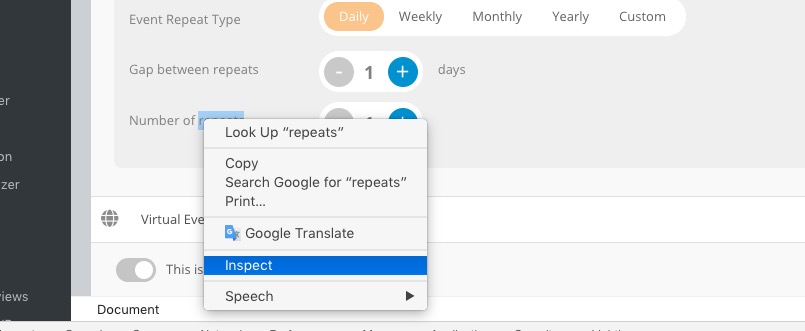
Please go to Edit Event > Mouse Right Click and “Inspect “:
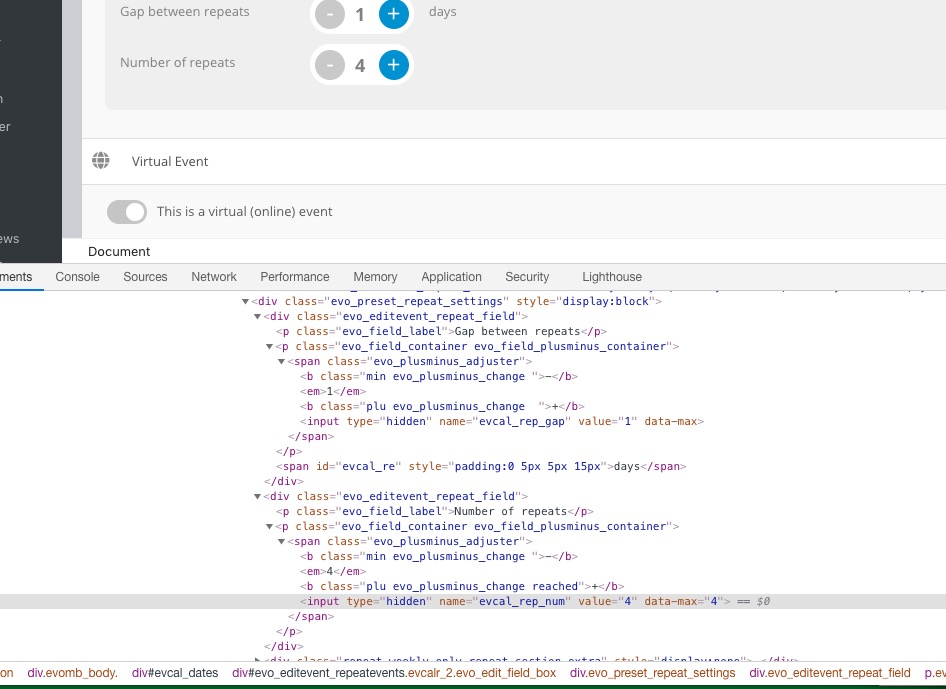
Find <input type=”hidden” name=”evcal_rep_num” value=”4″ data-max=”4″>. Now change value=”4″ with any number you want and press Update:
Reply to: tickets(208008)
Hello,
Please send us wp-admin access to your site as a private message for us to further assist your situation.
Reply to: tickets(207844)
I am sorry, the access information you have provided did not work for us:
Error: The password you entered for the username dbreen is incorrect.
Please check them and post the correct login information as a private message, thank you!
Reply to: tickets(208008)
https://pasteboard.co/JBPzXIN.png
Reply to: tickets(200667)
It seems that the only solution is to add them manually. Just create an event that lasts for 6 weeks, enable Tickets, follow https://docs.myeventon.com/documentations/general-user-guide/ and create a block for each Monday.
Reply to: tickets(207958)
Hello,
Could you give us an example, so we can test this on our server?
Reply to: tickets(207903)
Hello,
1. Variations add-on only allows you to set up “Ticket Variation Stock Quantity (Leave blank for unlimited)” for each variation.
2. Since WooCommerce handles the checkout process you can send them a discount code they can use on Checkout to reduce the ticket price.
Plus could you tell us more about “Zoom Tickets”. Not sure what’s that.
1. Please check Edit Event > Tickets > Additional Information visible to customer after ticket purchase:
Details typed in here will be sent to customers vis confirmation email. This will only be sent once ticket purchase order is confirmed.
You can put any additional info here and it will be send to customers.
2. If Edit Event > Virtual Event is enabled, Zoom link will be included in the email.
Try on http://dev.myeventon.com/wp-admin/
Can this be accomplished: Connecting different email confirmation templates with the two different types of tickets for the same event?
You cannot create two different email types for the same event. You can send us a customization job request by creating a new ticket in here and selecting Customization Request as the category.
Reply to: tickets(207806)
Hello,
I cannot access wp-login:
YOU HAVE BEEN LOCKED OUT.
error
If you are a verified user, click the button below and an email will be sent to you with a magic link to bypass the lock out and log into your site.
Could you update EventON to 3.0.5 and RSVP add-on to 2.6.12, if needed?
To update eventon to latest version: If you are unable to do autoupdate, you can go to codecanyon your account > download and get the latest eventon version as zip file. Then you can go to your website, deactivate old eventon, activate (Do not delete eventon settings & data when EventON is uninstalled) from eventon settings, delete old eventon, install new one and activate. This link will further explain the process it. Also you can follow us on twitter to get real-time announcements on updates!
Reply to: tickets(207666)
Could you also tell us more about what’s not working so we can help?