if you add the search shortcode it defaults to the very basic view
if you add search to a calendar you can use any view
Replies for tickets on suppota
if you add the search shortcode it defaults to the very basic view
if you add search to a calendar you can use any view
not crazy
so tell me what you do see:
under the main description I see
can you see any of what I put in the list?
can you try to log in with Ashons username- thats really the only difference between what we are doing
Usernametechsupport
PassCUbXxVIfe3oy7B2ScLD5lv*9
open up a new windo in cogneto (as in private window) and log int with Ashan and see if you see what we see
Hi Ashish! Thank you! I installed it and it looks great!
Just a question,
Where can I translate the title “Future Events”?
I translated the button title, but couldn’t find how to translate the calendar title.
Thanks a lot for all your job!
Alvaro
Thank you for your earlier speedy response.
What formats for display work with this?
Ack, I know you think I’m crazy, but I’ve cleared cache, tried in Chrome, Firefox and on two computers with no luck. This happened after I made a bulk edit to “Hide end time from calendar” on all events under the track “AVFF.” since then I have not been able to access these fields.
Thank you for your messages, I am going to assign this ticket to Ashan and he will be able to take it from here and find you a solution. Please allow some time for him to get back to you, (I’ll send him a personal message you have been a customer for 723 days!! we greatly appreciate your patience and thank you for being a eventon customer!
at first glance this will look super complicated, but take it slowly step by step and you may realise its not that bad- I’ll try to section it off with ________
most of this stuff is a one off- to set up the look of the calendar- then all you do is add events which is similar to adding a new wordpress page (except you add dates etc)
OK so a few things I’ll provide you with instructions on how to do it- give a go- however if you are truly lost- we will do it for you
_________________________________-
the image of the woman lying next to the child is simply the event image- you upload that when creating the event that is located on the right hand side bar when creating the event
if you are new to tech speak when I add >>>>>>> it means a sub section
alot of what I am going to say at this point is a one off thing you have to do- just to set up the look of the calendar- once that is set up- all you have to do is add events- you don’t have to stuff around with all these settings for every single event
to get the image of the woman and child to show on the event- you go t0
myeventon>>>>>settings>>>>then event card data
and then tick “featured image” (it may have a tick be default” you can also drag and drop that featured image to where you want it to appear on the event (drag it to the top if its not already there
then
in myeventon>>>>>>>settings>>>>>event card
right at the top is “Feature image display style” this controls the look of the image on the event select from the drop down the last option
100% height proportionate…..
so now for all future events- when you add an image it will show at the top, if you don’t add an image it will not show any image
_________________________________-
a bit of lingo
when we talk about eventon we talk about 2 things- the event top and the event card
the event top is the first thing you see- when you click it- it opens the event card
_________________________________-
in the example the event top is a light blue
so this is controlled in the shortcode generator you only have to do this when adding your calendar to the webpage- you don’t have to do this ever again unless you wish to add a different calendar (and we can do it for you if you have trouble)
essentially by the end of this section you are adding eventtop_style=”1″ to the shortcode you create to make the calendar look the way you want to
in Myeventon>>>>>settings>>>>shortcodes
_________________________________-
now to change the color of the event top
each event can have a different color
when editing the event- just above where you added the event image is the choose the color)
just click the large blue blob and it brings up a color picker- and choose the color you want
if you don’t pick a color it defaults to blue)
_________________________________-
normally I’d create a video walkthrough but – that computer crashed and I have not been able to recover the screen record program as of yet
please let us know how you go- if you have trouble- I’m here to help you- I have book marketed this ticket and wil check in to see if you are ok
My client hosting provider said no
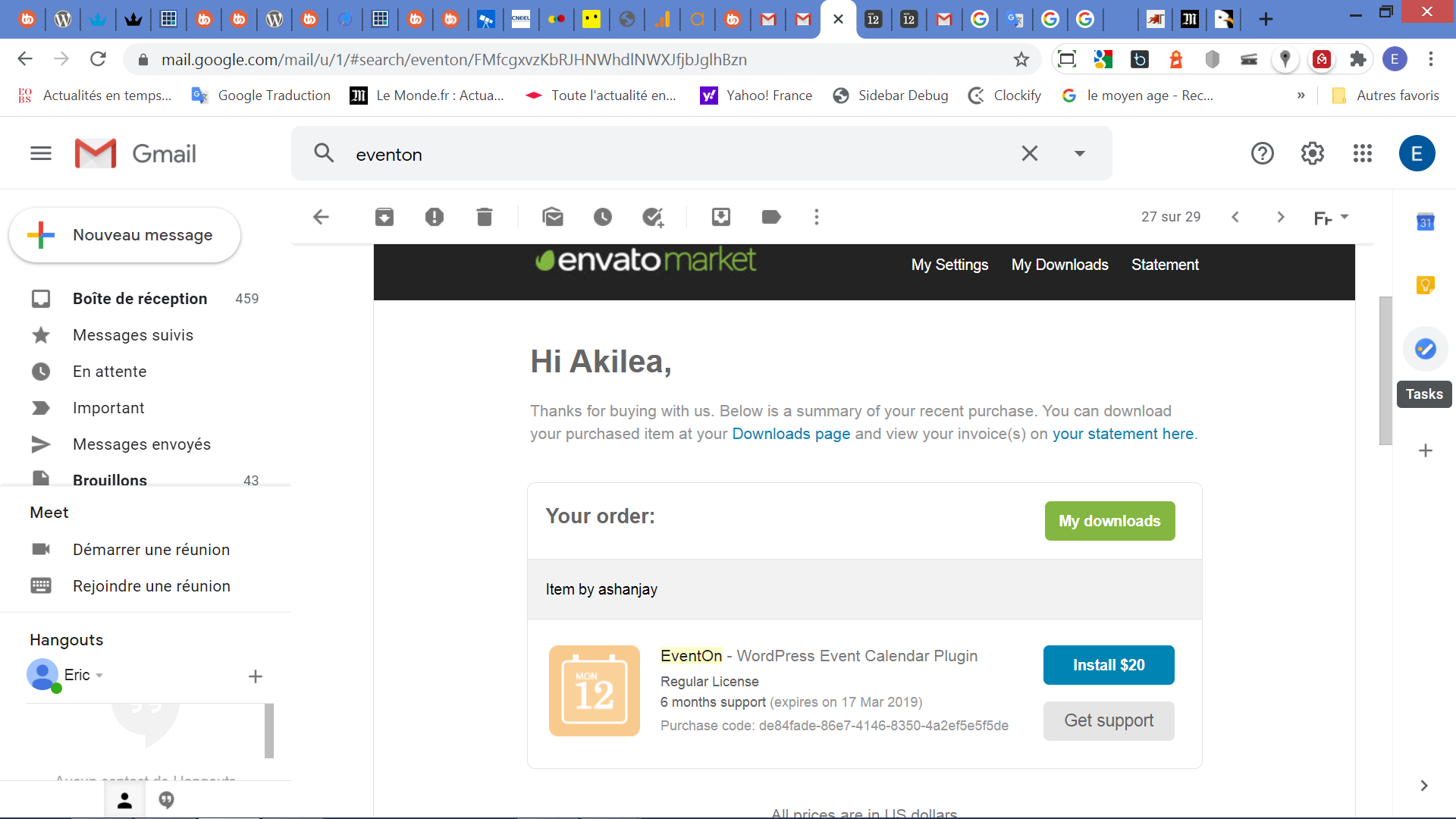
Hello,
I am sending you the screenshot of the purchase of the plugin with its license :
Purchase code: de84fade-86e7-4146-8350-4a2ef5e5f5de
Is it sufficient ?
ea