[Replyto/193544]
Ashan,
Could you answer:
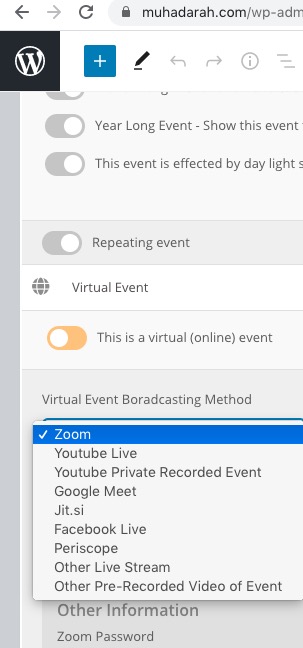
Now, I have a problem with zoom, in which the host teacher will go in video to learn students. if . If i added the speaker of the event as the host, it will be as a host in Zoom setting option. As i programmed the zoom meeting to give the host just the ability to share screen. Is the host in Eventon is the same in ZOOM setting?
1. It seems that the only way of achieving this is to follow https://docs.myeventon.com/documentations/shortcode-generator/ > Other Uses (Advanced). Use event_organizer https://prnt.sc/ucds84 and put the current user id associated with organizer id. The problem is that I am not sure how you can associate them with each other. You can send us a customization job request by creating a new ticket in here and selecting Customization Request as the category.
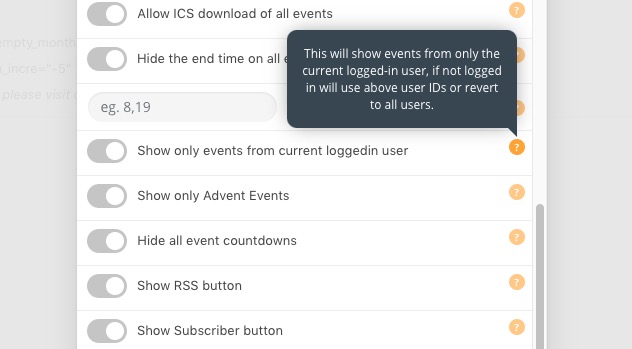
Please check also check Action User add-on: https://www.myeventon.com/addons/action-user/. With the add-on you can use “Show only events from current loggedin user”:
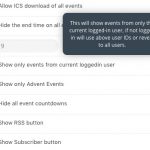
Try on http://dev.myeventon.com/wp-admin/
Tickets add-on can integrate with the local plugin of payment (FAWRY) ?
WooCommerce handles this part. Please check it’s available features.
How to make these choices of drop list like in demo
This is already available, no?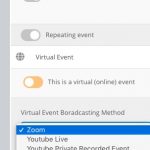
Now, I have a problem with zoom, in which the host teacher will go in video to learn students. if . If i added the speaker of the event as the host, it will be as a host in Zoom setting option. As i programmed the zoom meeting to give the host just the ability to share screen. Is the host in Eventon is the same in ZOOM setting?
Thank you for your messages, I am going to assign this ticket to Ashan and he will be able to take it from here and answer this question. Please allow some time for him to get back to you, we greatly appreciate your patience and thank you for being a eventon customer!
Please note that you don’t need to use Language corresponding events when using WPML.
I don’t understand the thing with the shortcodes. Does that mean that we have to add the wpml_l1=’en’ wpml_l2=’sv’ parameters to every single Eventon shortcode on the entire site? That seems extremely convoluted. Or am I misunderstanding something?
This is how it works, I am afraid. Please follow this guide https://docs.myeventon.com/documentations/wpml-eventon-front-end/ and configure your shortcodes accordingly.
I’ve also added the English translation to L1. How do I remove all these translations for L1?
Please go to Edit Event and change Corresponding eventON language to L2.
Please try this code and let me know if it works:
#order_review .evo_ticket_vos { display: none !important; }
Thank you for the login info. Ashan will check this ASAP.
Now it says:
Sorry, the file you have requested does not exist.
Make sure that you have the correct URL and that the file exists.
Could you let me know if this is what you want: http://dev2.myeventon.com/22906-2/?