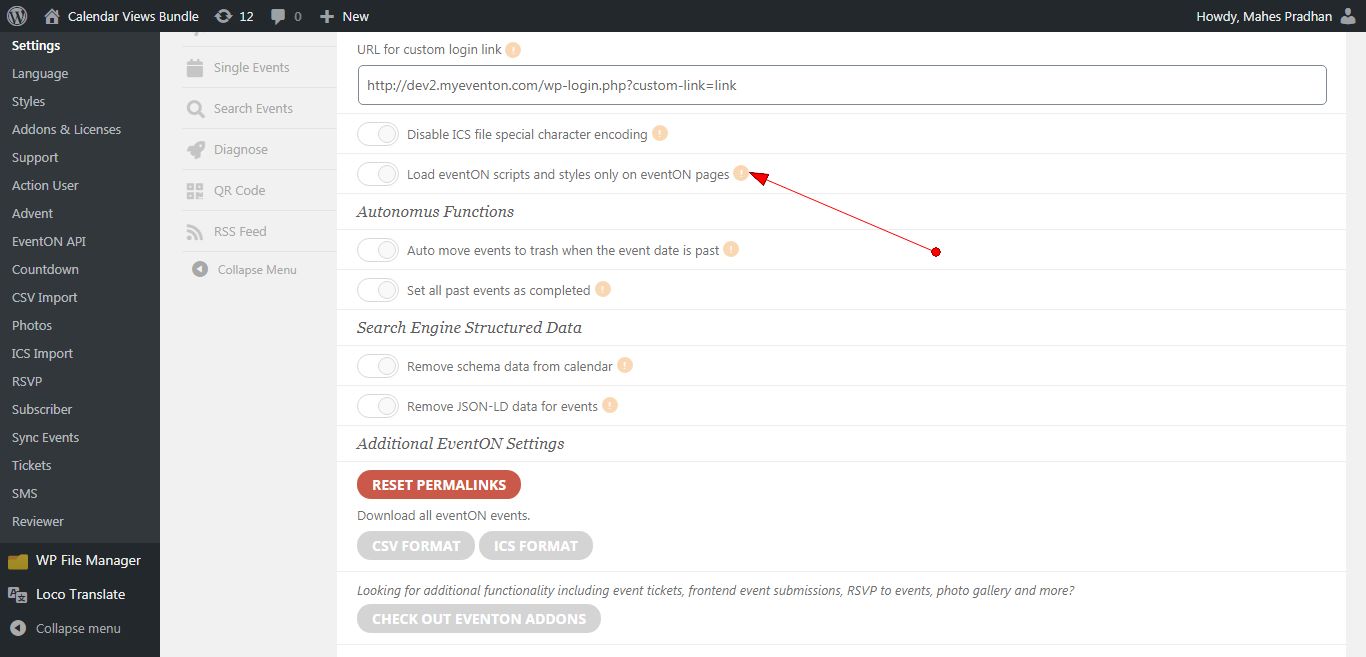
Please go to myeventon->settings and turn on
“Load eventON scripts and styles only on eventON pages” option
Replies for tickets on suppota
Please go to myeventon->settings and turn on
“Load eventON scripts and styles only on eventON pages” option
Hello Basilis,
retarus.com/wp-admin
username: externalsupport
password: Mar3L$pSqw)l35&fUV3Z8ND1
since this is our live instance, please be careful. Thanks
Also it’d be good for us to know in which timeframe exactly you’ll be working on the site so that I can assist you and be there for answering questions when needed!
Hi Ashsih, sorry for late reply.. my developer is not here today for testing.. but tomorrow we will do.. and i will imediatly reply here. if all working correct or is we have any issues..
hope tomorrow is fine
BR
Michael
Never mind.. I figured it out… Sorry for disturbing you..
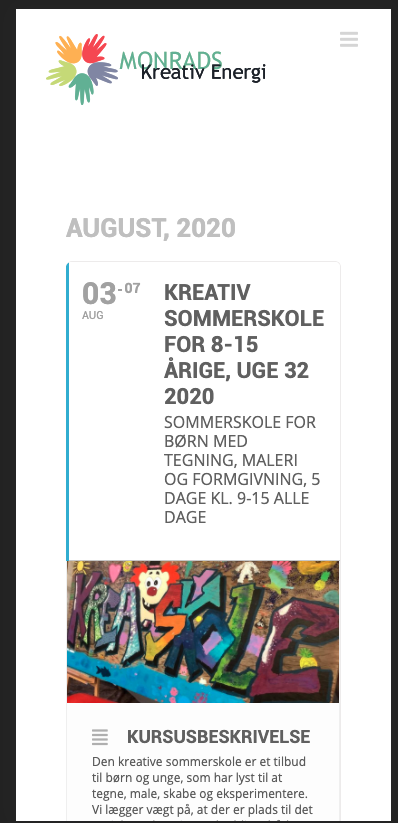
On another page I created that is using the previous version of the plugin it looks like the attached image.. As it should.. The two sites using EventON are using the same plugins and theme.
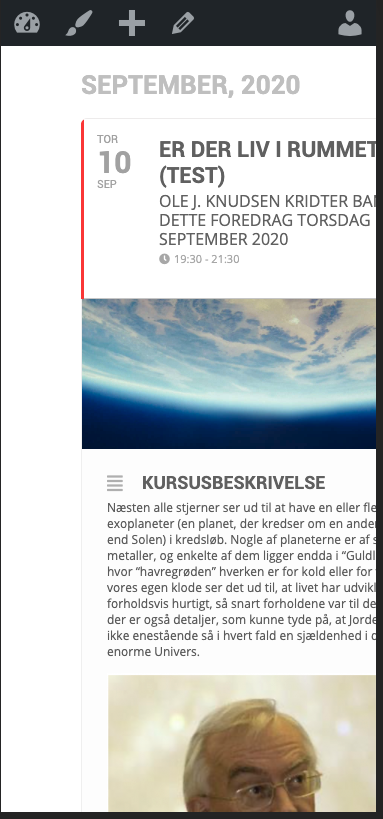
Here is the image:
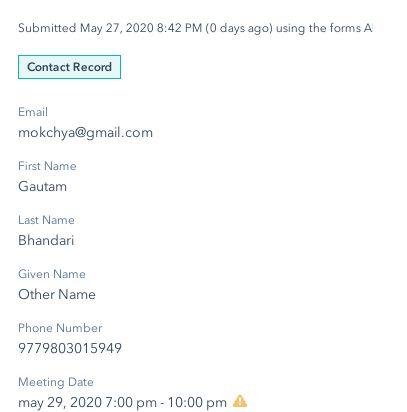
# It seems like your Hubspot Form Meeting Date input is in Date Format ( i.e datepicker ) and RSVP submitted event date is in Text format ( i.e Date and Time e.g may 22, 2020 7:00 pm – 10:00 pm), so API will not be unable to save the event date/time properly and will show up as a error in Form submission details as below screenshot.
# For this to resolve either you can change Meeting Date input to text format so that it can save whole date/time, or we can setup API to send event date only ( not including time) so that it can correspond with current format.
Since support period for customization work is 5 days, please let me know if anything is not working as soon as possible. Thank You
great 😉
If you have a moment, we would greatly appreciate if you could kindly leave us a review at codecanyon! from your account > downloads. Cheers!
To change color, please go to eventon->styles and add following code in the panel and save the settings:
.evo_cal_above .evo-filter-btn:before, .evo_cal_above .evo-sort-btn:before {
color: blue !important;
}
If you do not see any changes, go to myeventon->settings and turn on “Write dynamic styles to header” button.
If you still do not see any change, turn off “Write dynamic styles to header” button, save the settings, turn it back and save the settings again.
Regarding adding text, it will require custom coding. You can send us a customization job request by creating a new ticket in here and selecting Customization Request as the category.
Thank You