That fixed it, thank you. Is there a way to change this text from “OTHER EVENTS” to “VIEW LOCATION DETAILS” or something?
Archives: Replies
Replies for tickets on suppota
Reply to: tickets(397639)
Hello, Thanks I have removed the line and it opens, however I still see a red rectangle, can we hide this?
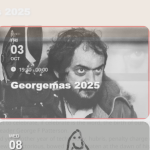
Thanks, Rob
Reply to: tickets(397563)
Sent. I made a note as we had to divert back to 4.9 as the new release had a bug or something. Essentially, events would not load and we couldn’t sell any tickets.
Reply to: tickets(397514)
Thank you Artem 🙂 That worked!! 🙂 I did eventually look for those code lines to remove the “return” value, and the file you highlighted is not present for me, so I will stay standing by until a plugin update is pushed out…Cheers 🙂
Reply to: tickets(397678)
We are glad your issue is resolved, if you have any further questions or concerns please create a new ticket.
Reply to: tickets(397724)
Hello,
All done! Please check with cleared browser cache.
Reply to: tickets(397686)
Unfortunately, this did not work – I wondered if reinstalling the plugin might help, but I am not sure if that would remove the data, as the rest of the year’s events are contained in it – and I don’t feel confident doing a manual update. Would this be the next step? Is there a way to protect the data and reinstall it?
The Divi support team had a look at it – below is their answer
“As a test, I tried deactivating the jQuery-related Performance Options in Divi 
However, the same error from the plugin script appears even when everything is disabled in the Performance tab. This error is preventing the plugin details from loading
Unfortunately, as this is a third-party plugin and our knowledge is limited, we recommend contacting the plugin’s support for the best guidance 
They might need to check the actual script file or suggest troubleshooting steps to fix the issue. Since the theme doesn’t have control over any plugin files, it’s possible that the problem occurred due to a corrupted update or the plugin malfunctioning during the process.
Let me know if you have any clarifications.”
Reply to: tickets(397728)
Hello,
Here is a patch fix that will fix it. Remove the “return;” value in the code.
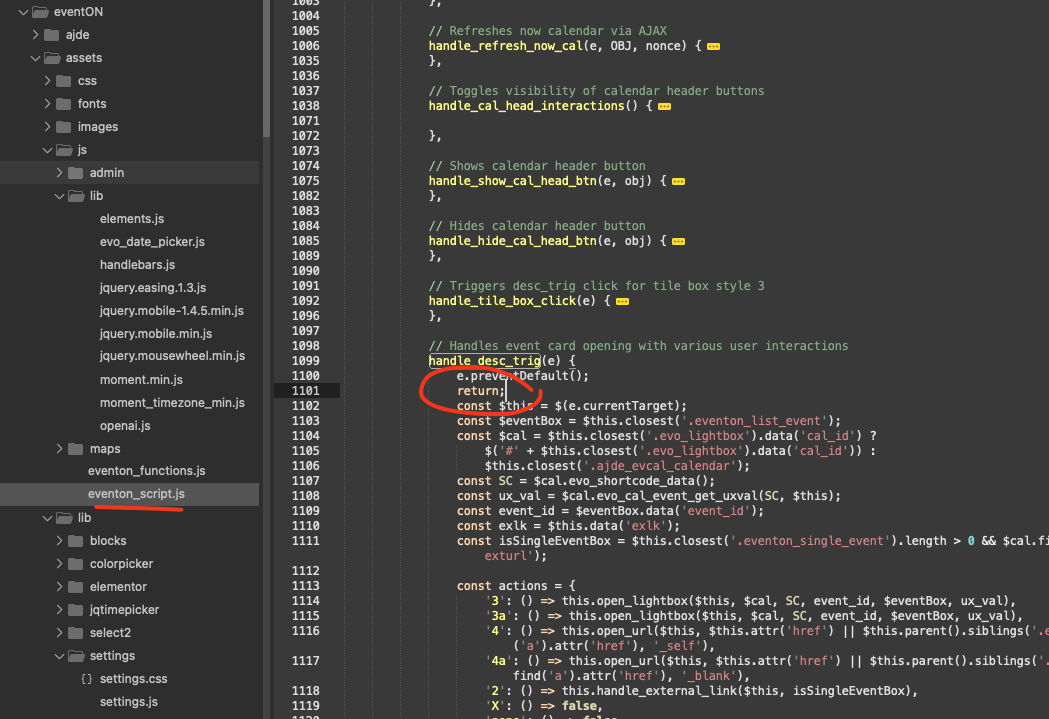
Reply to: tickets(397514)
Please add this CSS code to EventON > Styles (If you don’t see any change, EventON > Scripts & Styling > turn off Write dynamic styles to header > save settings > turn on Write dynamic styles to header).
You can also add this code to wp-admin > Appearance > Customize > Additional CSS.
.ajde_evcal_calendar { color: white; }
Reply to: tickets(397678)
So everthing will be fine again.
Thank you and have a nice day.