there is a search shortcode using the shortcode generator
go into myeventon>>>>settings>>>>shortcodes
set the number of months and you can put that where you wish
Replies for tickets on suppota
there is a search shortcode using the shortcode generator
go into myeventon>>>>settings>>>>shortcodes
set the number of months and you can put that where you wish
You save my live!!!!!!!! Just perfect. Thank you soooo much!
Warm regards Susanne

That works great – had to edit some CSS to make the day fit my format, but looks good.
Can I just turn off the Month now? (you will see in the screenshot I’ll attach)
I just don’t need that month down there because they know what month they are on.
If I hide it with CSS (using display:none;), it breaks the whole setup because I have all the sizes customized via CSS and the month field is attached to everything in the upper fields.
I bet there is a way to turn this off too that I didn’t see like the day fields…
Thanks for all the help!!!
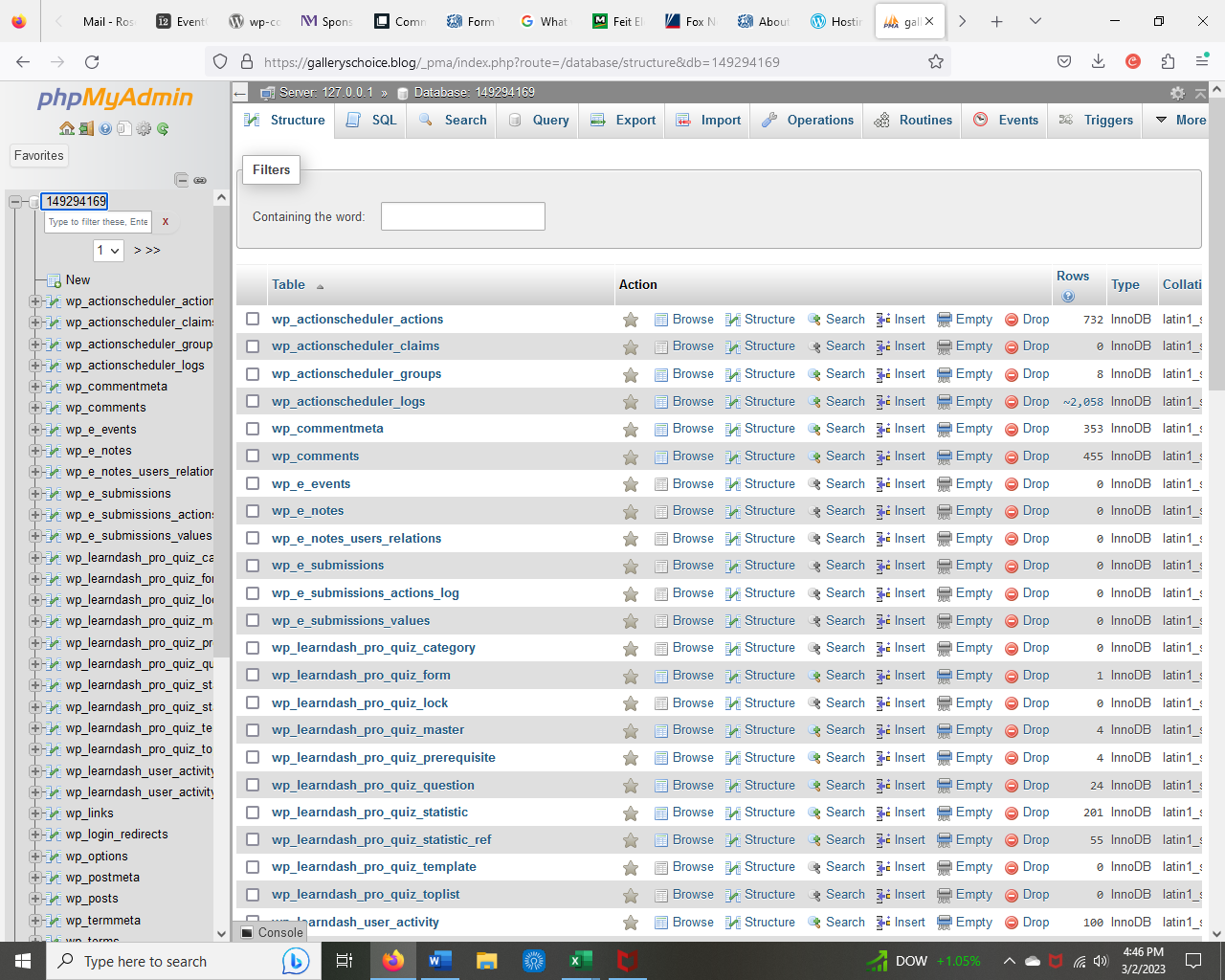
We don’t know where to edit wp-config.php. Or we don’t have access under WordPress? This is a wordpress-hosted site. See image for the directory we found.
Can you provide better directions to the file? All of the help I could find assumes you can see it in the “root directory”, but where is that?
Thanks
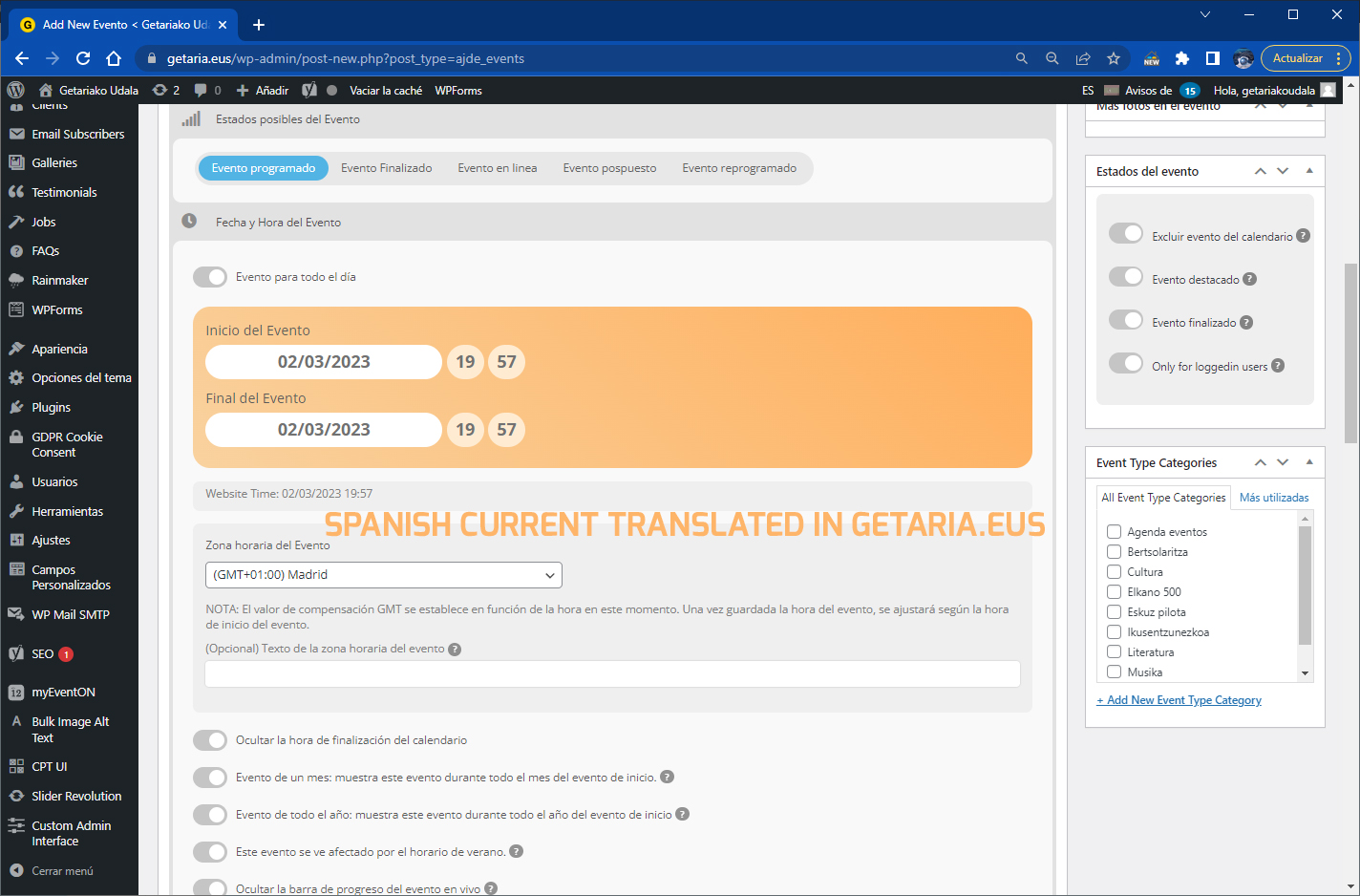
Hi
Resend the image..
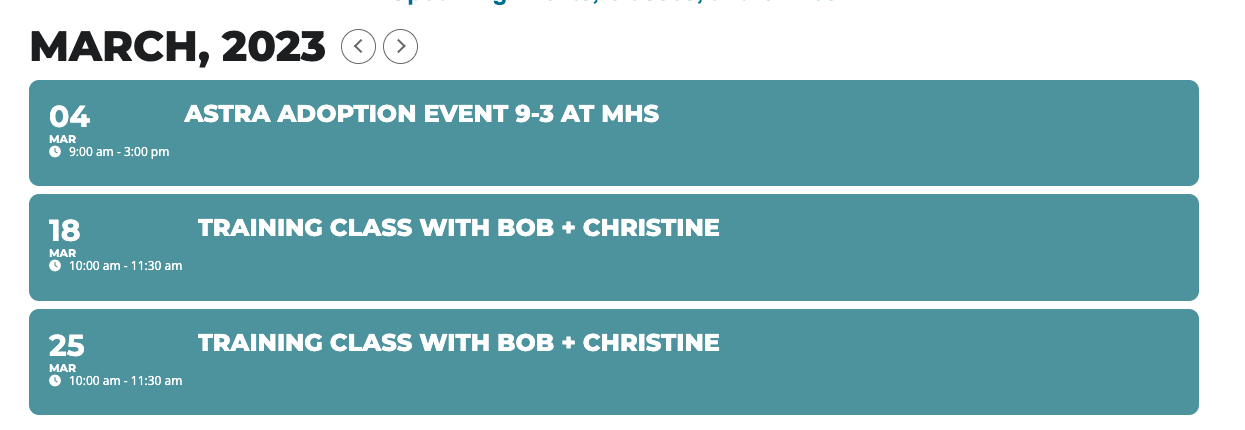
STILL WAITING… I’m going to take the plug-in off the site and will need a refund if you do not respond with a solution… IMAGE shows two training classes that are NOT on the current calendar I have imported.
We didn’t receive the image. Could you re-send?
EventON uses a third-party plugin for the back-end translation, so please check the documentation of qTranslate-XT on how it handles import/export.
Will this view work for you:
https://geburtundhypnose.ch/test/
Hello,
WooCommerce handles orders. Please take a look at this guide:
https://woocommerce.com/document/managing-orders/#order-details
Please also make sure after the change to go Edit Order > Tickets > Ticket Numbers for this Order > press Ticket ID > press SYNC WITH WC ORDER.
Also note that certain info cannot be changed, so the best solution is to cancel an order and then let a customer to purchase again.
Login info stopped working. Could you check?