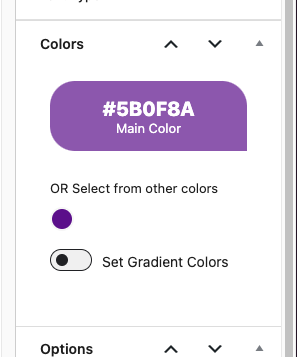
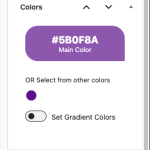
Hi Artem, EventOn used to have the ability to add custom colors so you can choose one for the background of an event tile. I have attached a screen cap of the panel where you used to be able to add colors. You used to be able to do this through the EventOn plugin. Are you saying this ability was removed and now you have to add them via the functions php file? This doesn’t make any sense to me. Am I misunderstanding something?
I have made the necessary changes:
Log-in: https://www.solarserver.de:8443/wp-login.php
Admin user: eventon
Password: *nV(Q1NXIIh@Ga)uCP(JPmuT
Hello Artem,
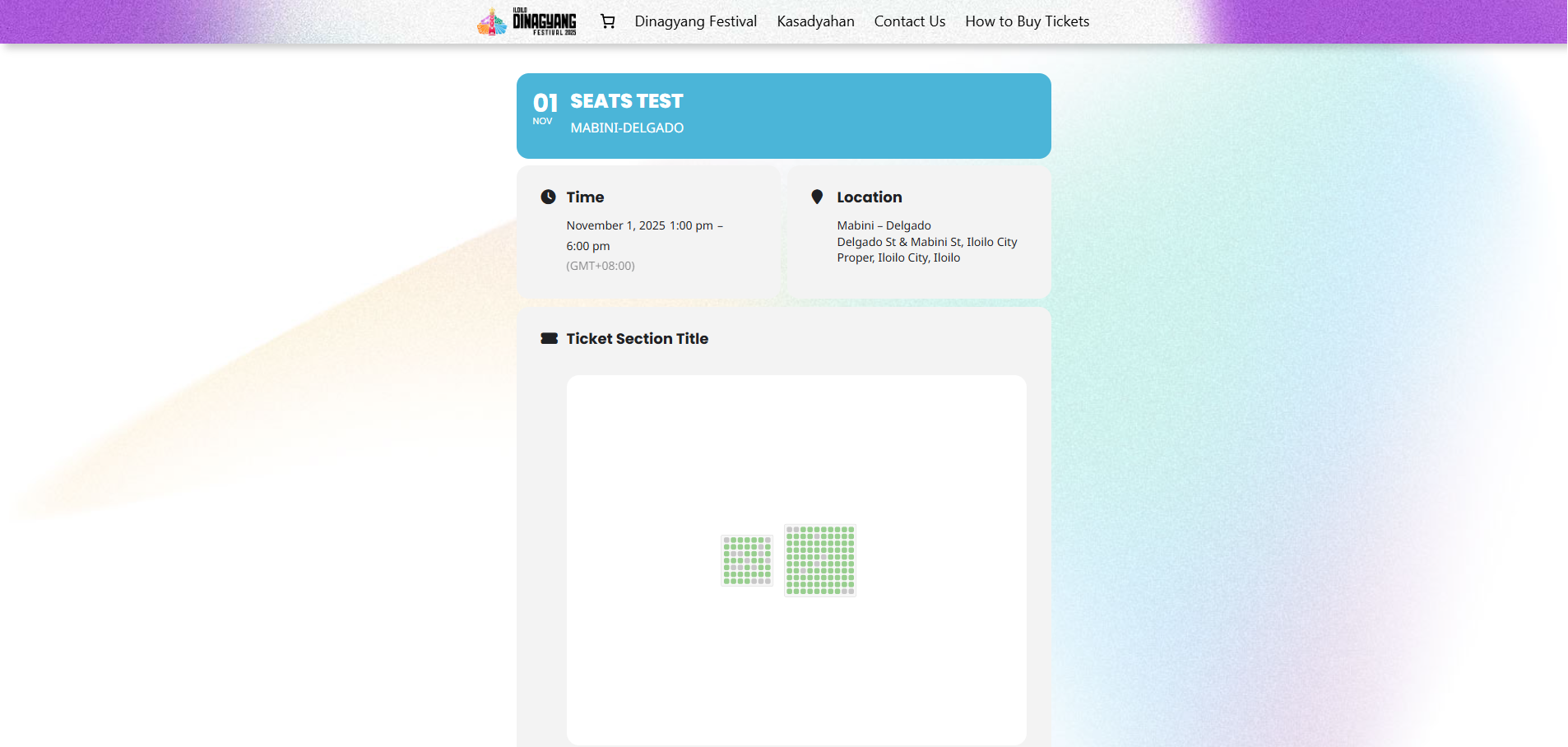
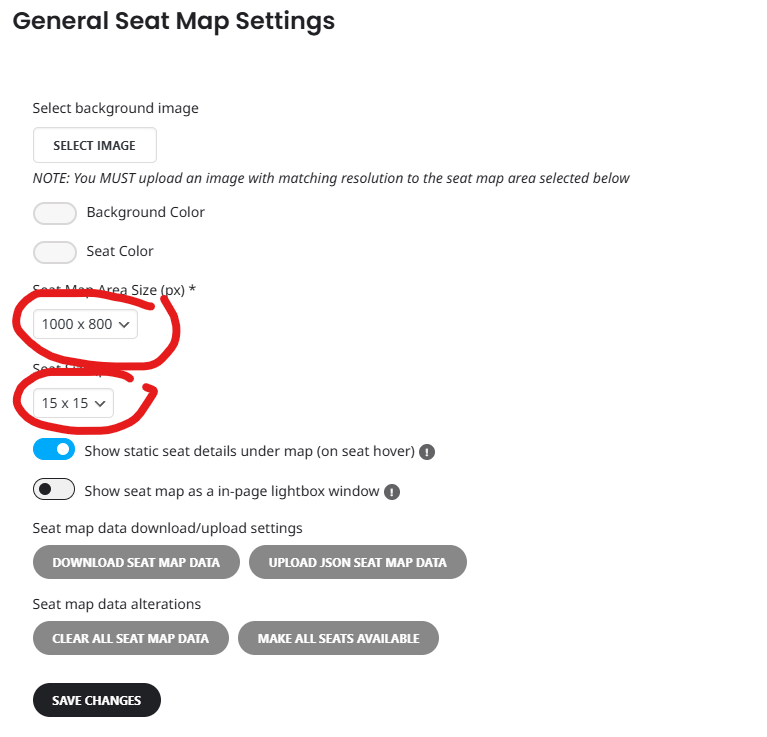
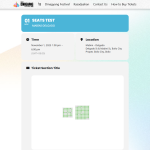
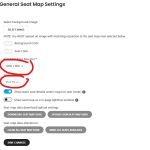
This is the test map that I did but as you can see it’s very small. Just 15×15 pixels mas. It’s hard to view on mobile phone and it needs constant zooming in when trying to purchase. I hope I can make this bigger like possible 3/4 of the window size. Most of our customers are a bit old
https://dinagyangtickets.com/events/seats-test/
You will see in the screenshot how small the map is inside the browser in my laptop. I already have the biggest settings for the seats
https://t.somptingvillagemorris.org.uk/calendar/ this is the staging page which currently is loading fine so difficult to troubleshoot I imagine. Hopefully the next release will resolve the issue.
Hello, yes i did get the debug file from wp-content, is this not correct?
I think this is the same one but updated so probably no use to you. http://gofile.me/6MN2I/efqxt20YR
I have since turned off caching on the live site using the litespeed cache plugin, hopefully this will stop the https://somptingvillagemorris.org.uk/calendar/ page from breaking!
Hello,
1. Please go to EventON > EventCard > enable Show full event description.
2. Do you want to show 8 events from multiple months? You need to use Event Lists: Ext add-on:
https://www.myeventon.com/addons/event-lists-extended/
Try on:
https://dev.myeventon.com/wp-admin/
With this shortcode:
[add_eventon_el number_of_months=”12″ event_count=”8″ event_count_list=”yes”]
3. Please create a new page and put the shortcode from 2 to the page. Now go to EventON > Events Paging > select the page “Select which page to get content from”.
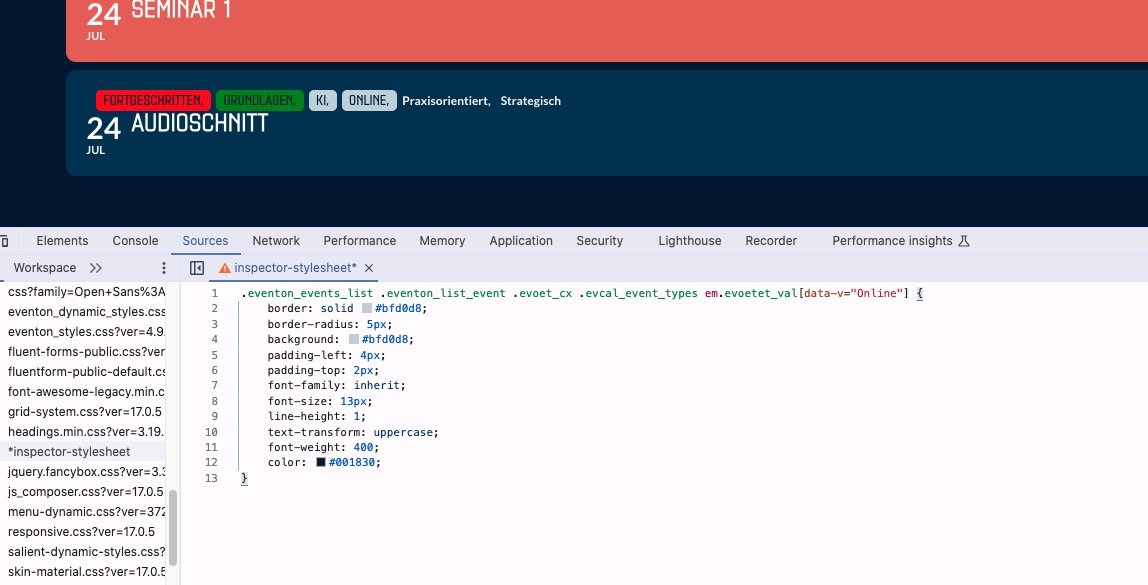
The code that should only affect Online:
.eventon_events_list .eventon_list_event .evoet_cx .evcal_event_types em.evoetet_val[data-v=”Online”] { border: solid #bfd0d8; border-radius: 5px; background: #bfd0d8; padding-left: 4px; padding-top: 2px; font-family: inherit; font-size: 13px; line-height: 1; text-transform: uppercase; font-weight: 400; color: #001830; }
You can use it for other types, just replace “Online”.
Hello,
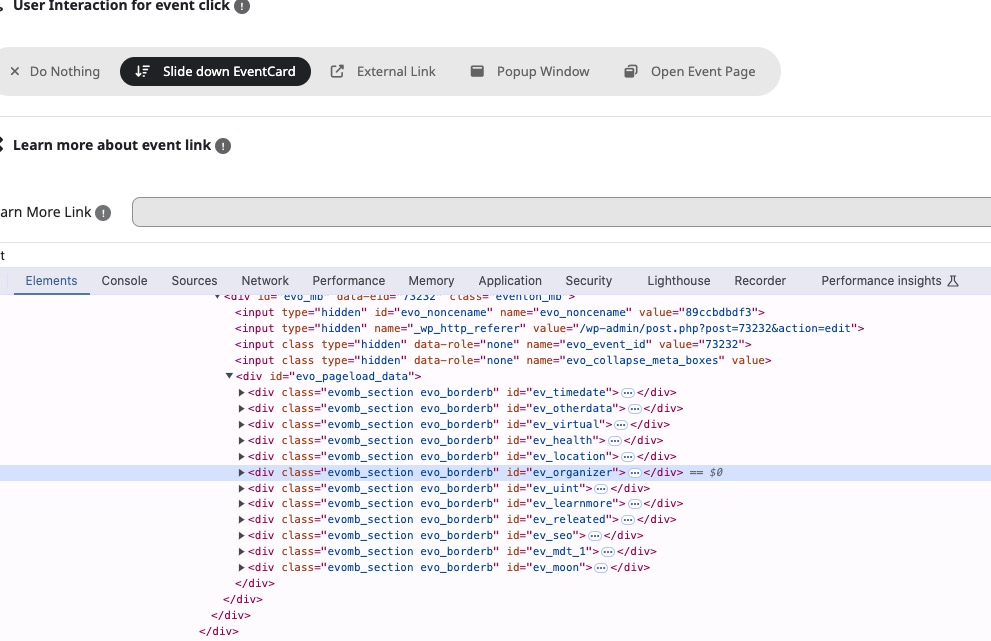
Please add this and similar CSS code to /wp-content/plugins/eventON/assets/css/admin/wp_admin.css:
#ev_organizer { display: none !important; }
IDs can be found on this screenshot:
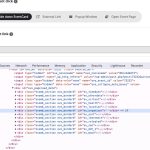
Make sure to manually clear the browser cache.
Ashan,
Reply to: 393361
The same on dev2:
https://dev2.myeventon.com/events/test-49/