Hello,
Please follow the instructions in this documentation to activate debug in your site to see any PHP errors recorded that can provide insight on to whats going on. Please reply with a link to debug.log file. If you are not able to do this please send us FTP access to your site so we can do this for you.
Hello, it´s still not working properly on my website.
I’ve tried new login info and it didn’t work for me. Could you check again?
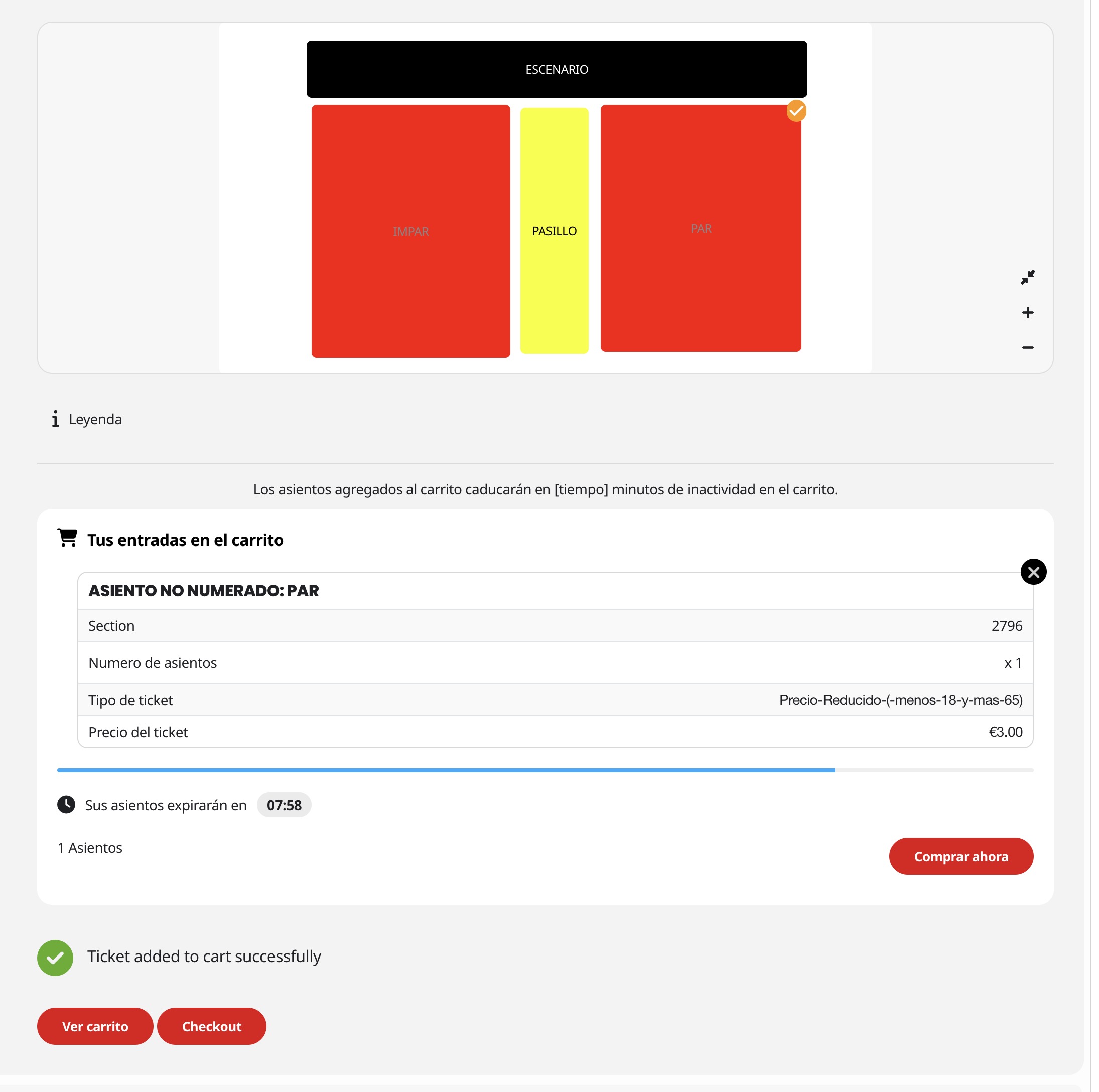
The orders auto-complete correctly; on the seat map, we have no problems with the right side, the tickets are added and the purchase is processed normally.
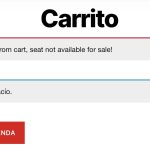
But on the left side, it’s added to the cart correctly, but when we go to view the cart there’s nothing there.
thank you
Hello, I have updated the credentials with a new Admin account. Please fella free to log in and check what’s necessary. Thanks.
I used a much older rsvp (one that I still have) and it worked. So, the glitch is in the new rsvp version.
sorry it took so long to get back to this… I get it now. Thank you.
That is so good to hear. I have always been a bit wary of Codecanyon, for reasons I can’t really define. This time I simply couldn’t believe the incremental cost uplift, none of which I assume you were going to get.
Thank you!
This is how it works. This is standard Microsoft procedure.
You can create a Microsoft Teams meeting link that people without a Microsoft account can join.
Here’s how it works:
 What attendees need
They do not need:
-
A Microsoft account
-
A Teams license
-
The Teams app (optional)
They can join via:
-
Their web browser (Chrome, Edge, etc.)
-
The Teams desktop app (if they choose to download it)
 How to create the link
Option 1: Via Outlook
-
Create a new meeting in Outlook.
-
Click “Teams Meeting”.
-
Send the invite.
-
The invite contains a link like:
“Click here to join the meeting”
Anyone with that link can join.
Option 2: Via Microsoft Teams
-
Go to Calendar.
-
Click New Meeting.
-
Add title/date/time.
-
Save.
-
Copy the meeting link from the meeting details.
-
Send it manually to attendees.
 Important setting (don’t skip this)
If you want external users to join smoothly:
-
Open the meeting in Teams.
-
Click Meeting options.
-
Set:
If you don’t change this, external attendees may wait in the lobby until you admit them.
 What the experience looks like for them
When they click the link:
That’s it. No account required.
If you’d like, I can also give you:
Done it has been refunded and the subscription adjusted to reflect the new prices. 🙂