Ashan,
On dev2:
https://dev2.myeventon.com/test-604/
Replies for tickets on suppota
Ashan,
On dev2:
https://dev2.myeventon.com/test-604/
Hello,
Thank you for your messages, I am going to assign this ticket to Ashan and he will be able to take it from here and find you a solution. Please allow some time for him to get back to you, we greatly appreciate your patience and thank you for being a eventon customer! Also please disable any IP blocking on your site if there are any.
Using Yellowpencil is great solution for this.
You can also add the code to wp-admin > Appearance > Customize > Additional CSS.
Hello,
Thank you for your messages, I am going to assign this ticket to Ashan and he will be able to take it from here and find you a solution. Please allow some time for him to get back to you, we greatly appreciate your patience and thank you for being a eventon customer!
Please add to the shortcode to load the initial events without Ajax:
cal_init_nonajax=”yes”
This way your cache plugin should be able to cache the whole page.
This worked! Thanks!
in the next version we will see if we can get these settings added as default values.
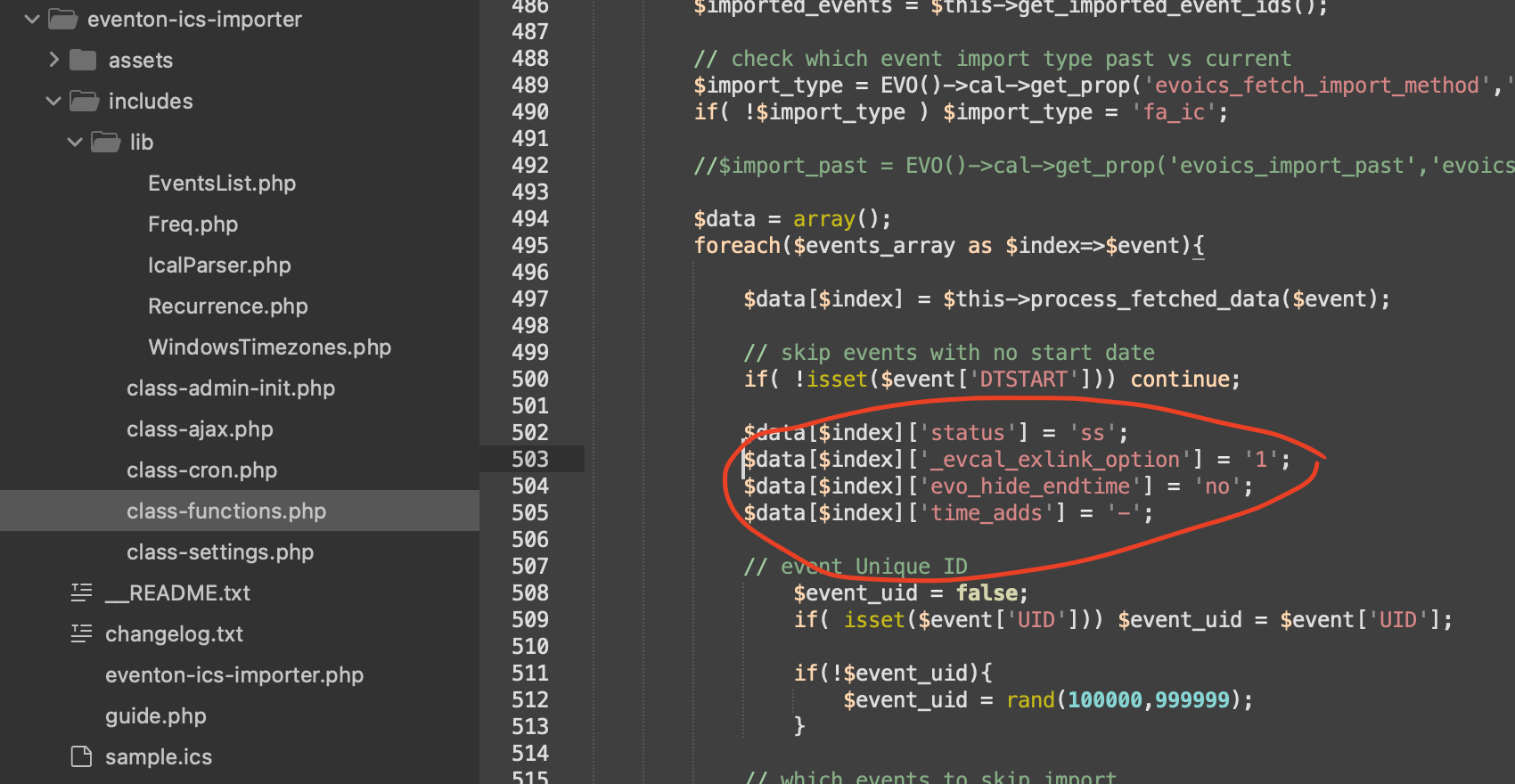
Ok so at the moment the values are default set for auto imports in below section of the code. You can edit this and have the auto imports, import in certain way you want.
any chance you can enable wordpress WP_DEBUG and see if that records any PHP errors for the email that does not go through? we will also do tests on our end to see if we can catch anything.
Hello Katrin, Ashan is here 🙂
This google maps API is kind of tricky to get somethings with the site restrictions. It used to work fine until they started charging for the API usage and adding all these restrictions.
This is not about eventON settings, it just pass on the API key into API call URL and rest is controlled by google. Here is a bit of a guide to check the IP restrictions.
When using the Google Maps API with an API key, IP address restrictions can sometimes prevent the map from loading. Here are a few reasons why this might happen:
1. **IP Address Mismatch**: If the IP address of your server or the client making the request doesn’t match the IP addresses listed in the API key restrictions, the request will be denied. Ensure that the IP address making the request is included in the allowed IP addresses for the API key.
2. **Incorrect IP Restriction Configuration**: Double-check the configuration of the IP address restrictions in the Google Cloud Console. Make sure you have listed the correct IP addresses or ranges.
3. **Dynamic IP Address**: If your server or client has a dynamic IP address that changes frequently, it may not match the IP address restrictions set for the API key. Consider using a static IP address if possible.
4. **Proxy or Load Balancer**: If you are using a proxy server or load balancer, the IP address seen by Google may be different from your server’s IP address. Make sure the IP address of the proxy or load balancer is included in the allowed IP addresses.
5. **Local Development**: If you are developing locally, your local IP address might not be included in the allowed IP addresses. You may need to add your local IP address to the list or disable IP restrictions temporarily during development.
To resolve the issue:
1. **Check IP Address**: Identify the IP address making the request to the Google Maps API. You can do this by checking server logs or using online tools to find your public IP address.
2. **Update IP Restrictions**: Go to the Google Cloud Console, navigate to the API key settings, and ensure that the IP address making the request is included in the list of allowed IP addresses.
3. **Test Without Restrictions**: Temporarily remove the IP address restrictions to see if the map loads correctly. If it does, reapply the restrictions carefully, ensuring all necessary IP addresses are included.
4. **Use Referer Restrictions**: If IP address restrictions are causing too many issues, consider using HTTP referer restrictions instead. This allows you to restrict API key usage based on the domain making the request, which can be more flexible.
By addressing these potential issues, you should be able to resolve the problem with the Google Maps API not loading due to IP address restrictions.