Meanwhile please cancel the subscription by following:
https://docs.myeventon.com/documentations/how-to-cancel-addon-subscription-before-auto-renew/
Replies for tickets on suppota
Meanwhile please cancel the subscription by following:
https://docs.myeventon.com/documentations/how-to-cancel-addon-subscription-before-auto-renew/
Hello,
I cannot find such orders associated with your email. Could you also send us your email?
https://helpdeskx.s3.amazonaws.com/wp-content/uploads/2023/10/25054430/Event-details.png
One is hidden the other one is visible. The one that is hidden is located is in except. Why they should be deleted? Are there any issues with Google Tool:
https://developers.google.com/search/docs/appearance/structured-data
3. Unfortunately, we cannot help with such customizations because of CodeCanyon’s Support Policy.
292 kB of fonts is one small image, which for modern servers is nothing. What you are trying to do needs to redo a lot of styling and will take quite some time and manual labor.
Hello,
Our refund policy can be found here:
https://docs.myeventon.com/documentations/terms-and-conditions-and-refund-policy/
Please take a look at “8. Refund Policy“.
Hello,
I am sorry, the access information you have provided did not work for us. Please check them and post the correct login information as a private message, thank you!
Could you try the instructions mentioned in this documentation?
Please add this CSS code to EventON > Styles (If you don’t see any change, EventON > Scripts & Styling > turn off Write dynamic styles to header > save settings > turn on Write dynamic styles to header):
.evotax_term_card .evo_card_wrapper { width: 100%; max-width: 100%; display: block; } .evotax_term_card .eventon.site-main {max-width:100%;width: 100%;–porto-container-width:100%;–porto-flick-carousel-width: 100%;}
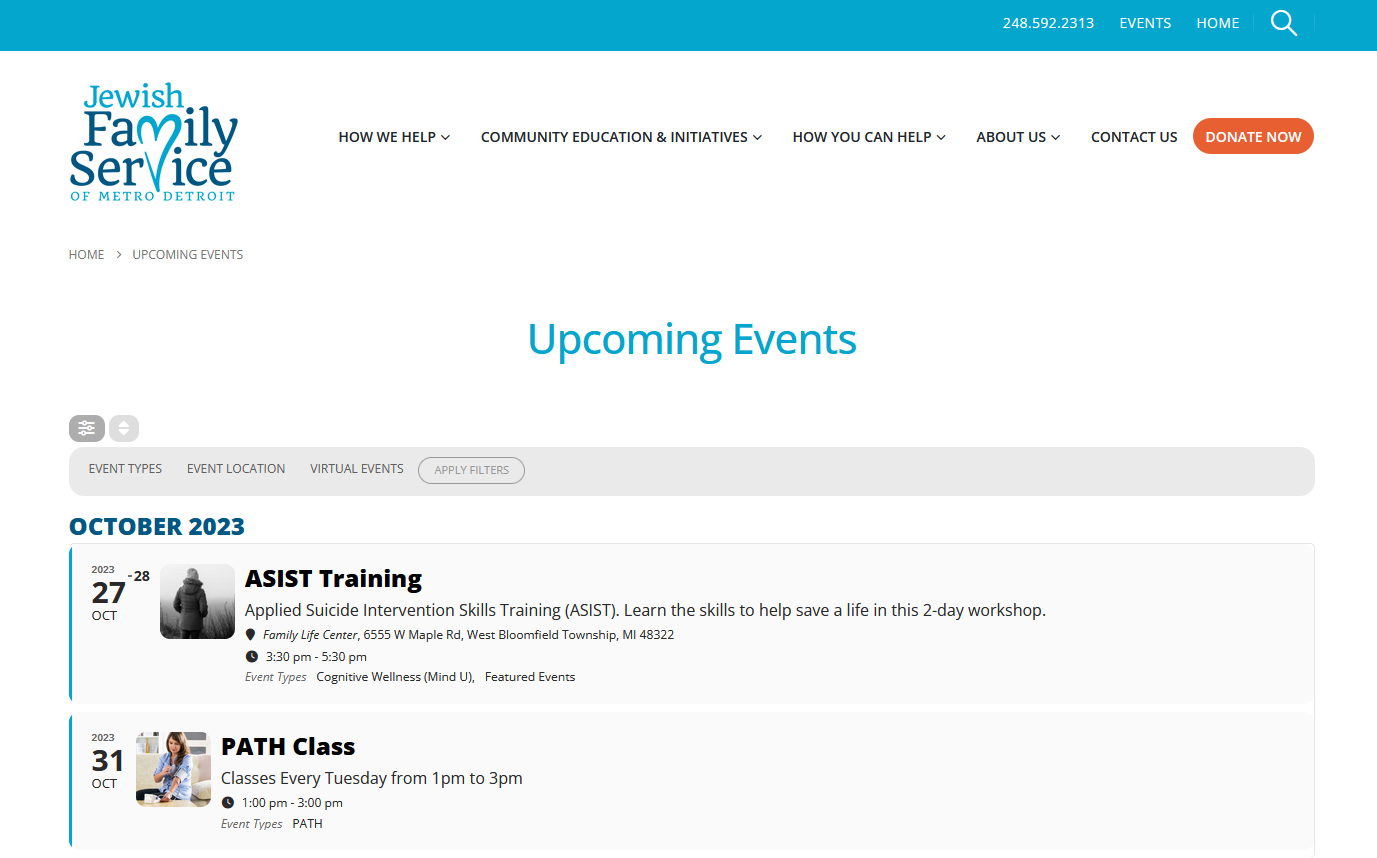
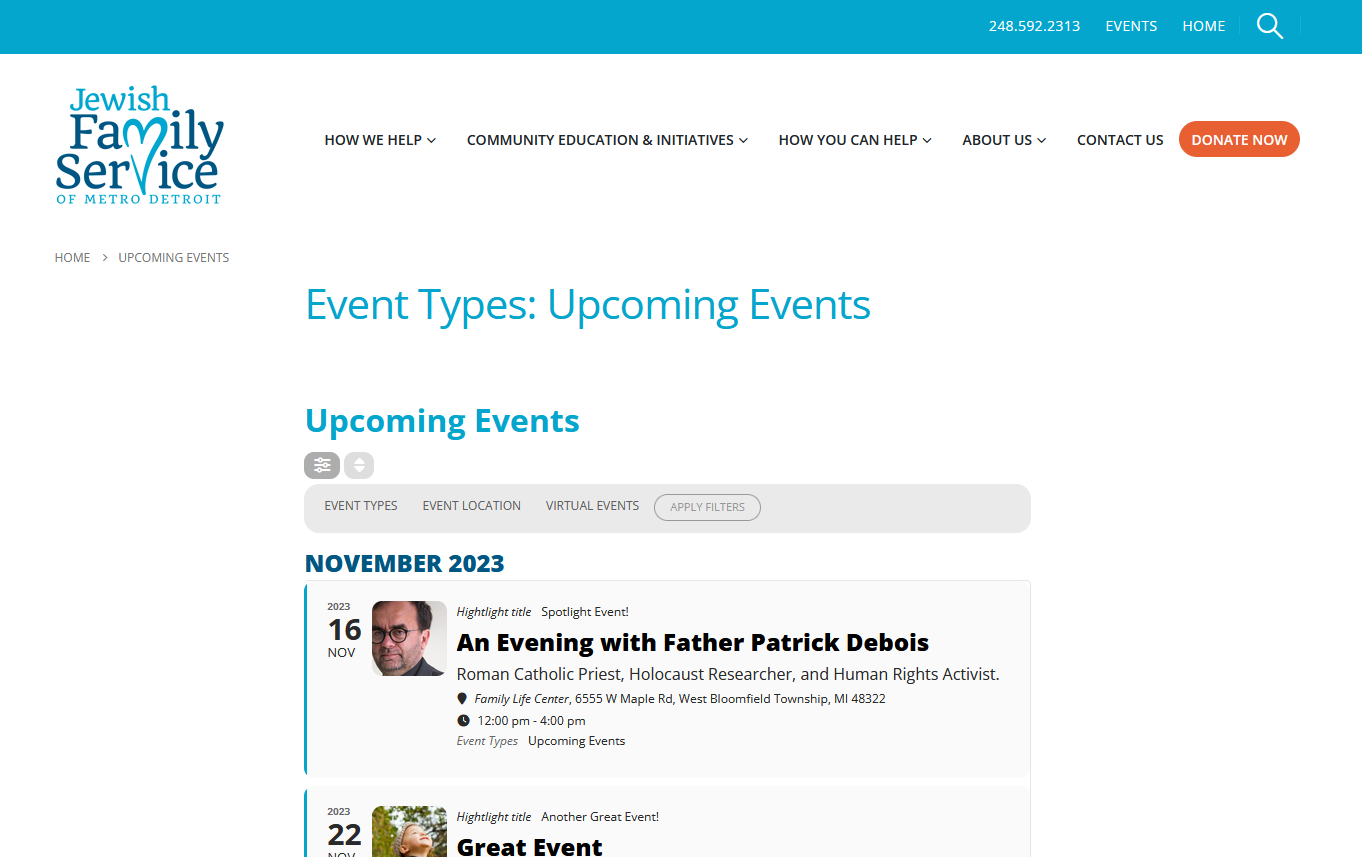
Perfect! I was able to figure it out in the code. One last question; How can I make the content of the archive page go full width?
Here is archive page using event list now (see screen1.png)
https://jfsdetroit.tpphost.com/event-type/upcoming-events/
And here is how the event list looks on the regular page we created (see screen2.png)
https://jfsdetroit.tpphost.com/upcoming/
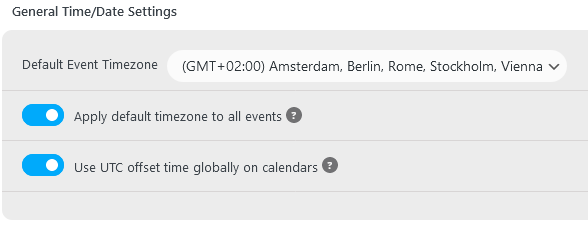
If I change the setting as you can see in the screenshot, all events are shown 2 hours before the entered time. Usually you can think, that’s UTC then (Germany is +0200). BUT this is only correct until the next sunday. Then we will switch to winter time (+0100). So all events after this date have to be only 1 hour before the entered time, not 2 as it is now. Then it would be possible to receive the timestamps as UTC and calculate the local time on our own.
If I set the Default Event Timezone to UTC instead of +0200, nothing changes – neither on the website nor in our app. I think, this is because the current local timezone is entered on each entry. Btw that’s +0100 on all the winter entries (correct). So the problem is only in the API.
Until the latest update everything works fine without doing some time calculation. The API offered the local time directly. That would be the best solution for us.
Ah yes I was able to login to FTP but now wp-admin access is not working…
can you please share wp-admin access the previous pass is not working any more for me.