Hello Artem,
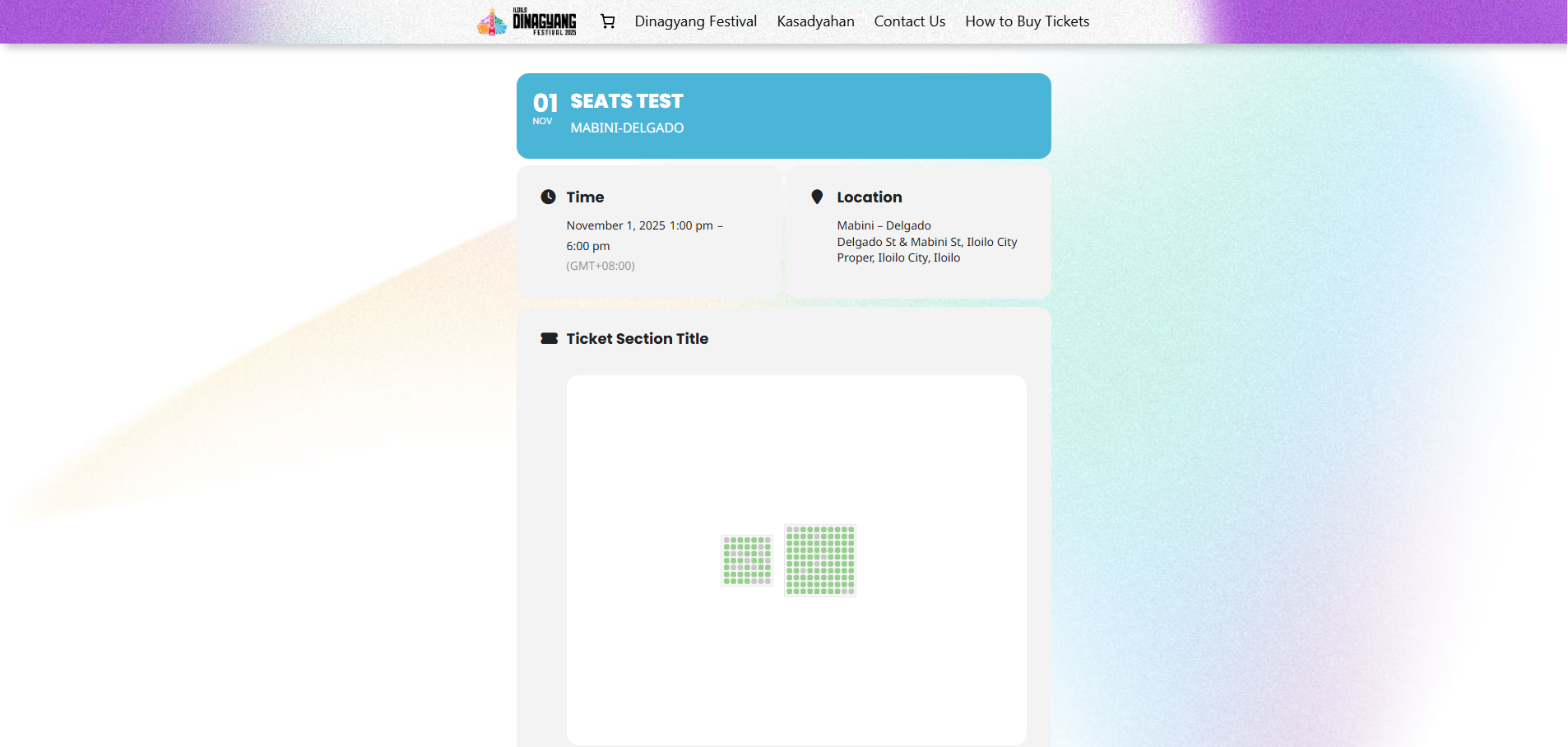
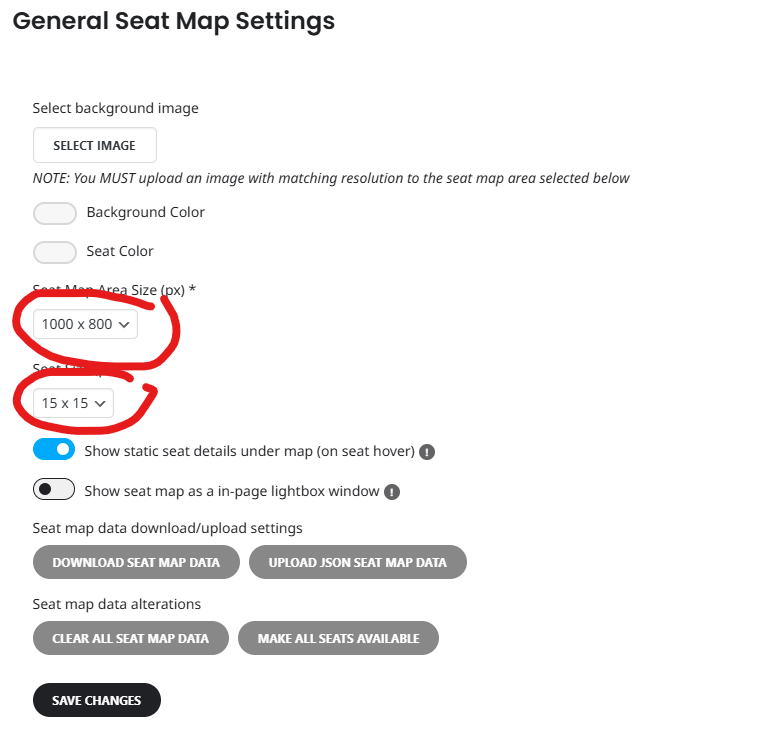
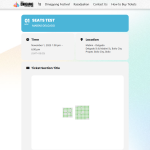
This is the test map that I did but as you can see it’s very small. Just 15×15 pixels mas. It’s hard to view on mobile phone and it needs constant zooming in when trying to purchase. I hope I can make this bigger like possible 3/4 of the window size. Most of our customers are a bit old
https://dinagyangtickets.com/events/seats-test/
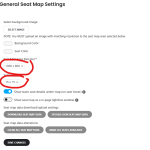
You will see in the screenshot how small the map is inside the browser in my laptop. I already have the biggest settings for the seats
https://t.somptingvillagemorris.org.uk/calendar/ this is the staging page which currently is loading fine so difficult to troubleshoot I imagine. Hopefully the next release will resolve the issue.
Hello, yes i did get the debug file from wp-content, is this not correct?
I think this is the same one but updated so probably no use to you. http://gofile.me/6MN2I/efqxt20YR
I have since turned off caching on the live site using the litespeed cache plugin, hopefully this will stop the https://somptingvillagemorris.org.uk/calendar/ page from breaking!
Hello,
1. Please go to EventON > EventCard > enable Show full event description.
2. Do you want to show 8 events from multiple months? You need to use Event Lists: Ext add-on:
https://www.myeventon.com/addons/event-lists-extended/
Try on:
https://dev.myeventon.com/wp-admin/
With this shortcode:
[add_eventon_el number_of_months=”12″ event_count=”8″ event_count_list=”yes”]
3. Please create a new page and put the shortcode from 2 to the page. Now go to EventON > Events Paging > select the page “Select which page to get content from”.
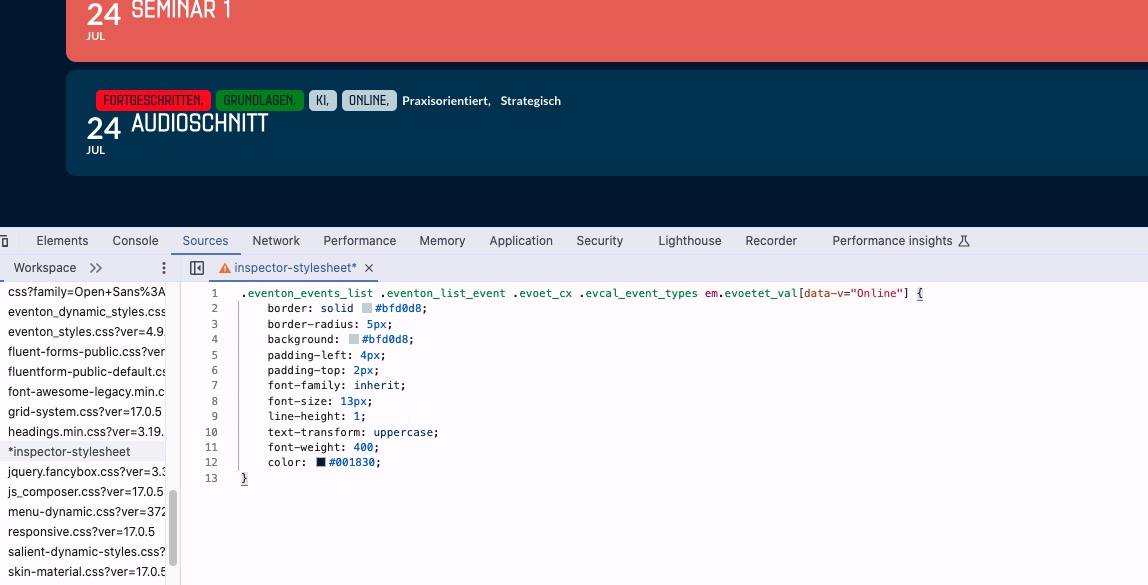
The code that should only affect Online:
.eventon_events_list .eventon_list_event .evoet_cx .evcal_event_types em.evoetet_val[data-v=”Online”] { border: solid #bfd0d8; border-radius: 5px; background: #bfd0d8; padding-left: 4px; padding-top: 2px; font-family: inherit; font-size: 13px; line-height: 1; text-transform: uppercase; font-weight: 400; color: #001830; }
You can use it for other types, just replace “Online”.
Hello,
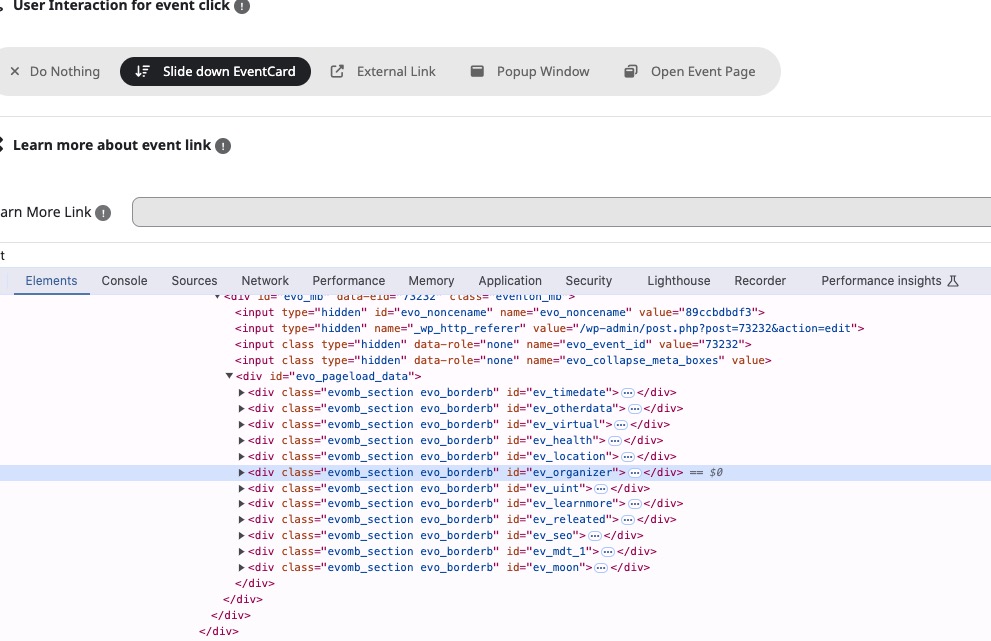
Please add this and similar CSS code to /wp-content/plugins/eventON/assets/css/admin/wp_admin.css:
#ev_organizer { display: none !important; }
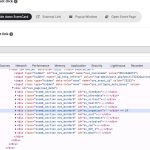
IDs can be found on this screenshot:
Make sure to manually clear the browser cache.
Ashan,
Reply to: 393361
The same on dev2:
https://dev2.myeventon.com/events/test-49/
Thank you for your messages, I am going to assign this ticket to Ashan and he will be able to take it from here and find you a solution. Please allow some time for him to get back to you, we greatly appreciate your patience and thank you for being a eventon customer! Also please disable any IP blocking on your site if there are any.
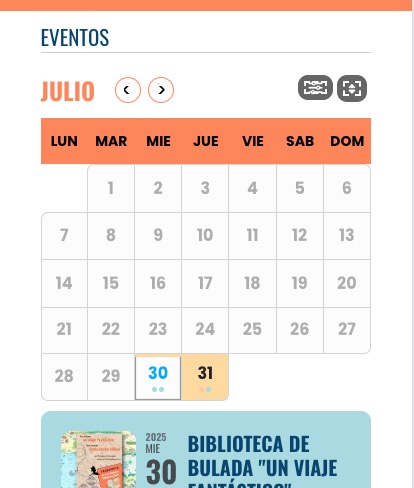
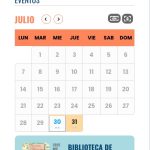
On mobile on my side arrows are located right next to the month name:
Could you try manually clearing your browser cache?